Open an IFC file
IFC2x3 and IFC4 models are processed locally in your browser.
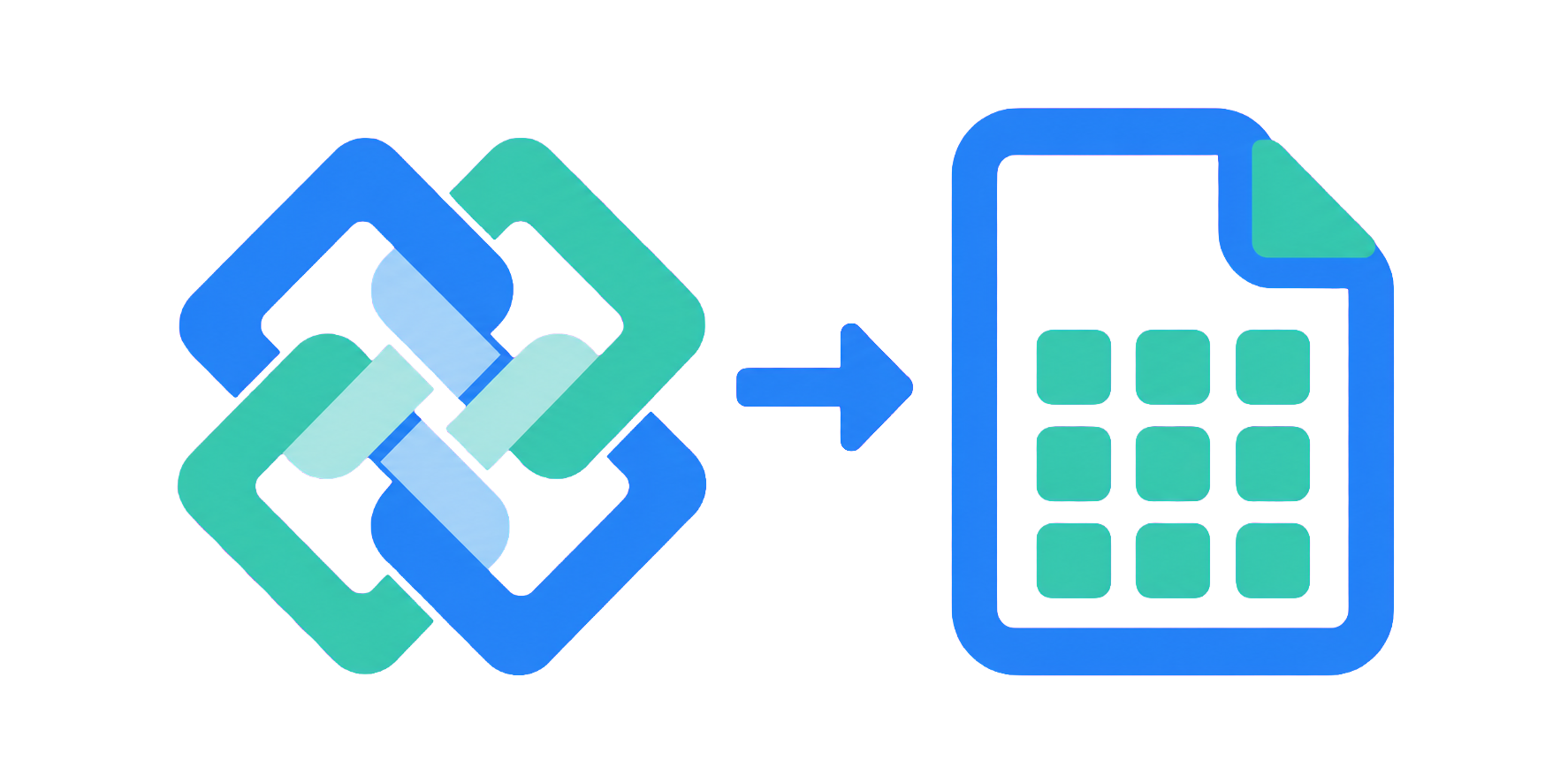
Convert IFC properties and quantities into clean Excel or CSV spreadsheets. No plugins. No file uploads.
Search properties, quantities, materials, and IFC attributes.
Drag to reorder columns. The preview and export use this order.
Control how columns, groups, and units appear in the output.
Review the output, filter columns, or build grouped summaries before downloading.
Choose exactly what you need and turn model data into a table ready for checking, estimating, reporting, or handover.
IFC2x3 and IFC4 models are processed locally in your browser.
Find element attributes, properties, quantities, and materials available in the model.
Reorder columns, filter rows, group data, convert units, and download Excel or CSV.
Your IFC file is parsed on your device and is never uploaded by IFC2Excel. This keeps confidential model data out of our infrastructure.
Use the converter for BIM coordination, model checking, estimating, schedules, data handover, and quick IFC audits.
Export property sets, quantities, dimensions, areas, volumes, classifications, materials, and element identity data.
Choose and reorder columns, remove empty fields, filter rows, group matching elements, and convert units before download.
Open IFC2x3 or IFC4 files created by compatible BIM authoring and coordination tools without installing a plugin.
No. Model parsing and spreadsheet generation happen locally in your browser.
Element attributes, model properties, quantities, materials, and other data that is present in the IFC file.
IFC2x3 and IFC4 are supported. Compatibility can still depend on how a specific authoring tool created the file.
No. IFC2Excel runs directly in a modern browser and requires no additional application or plugin.
Pro includes unlimited Excel and CSV exports with filters, grouped summaries, custom units, unit symbols, and empty-column removal.
One credit unlocks one full export with Pro features. Free accounts receive one non-accumulating daily credit, purchased credits do not expire, and credits are not consumed while Pro is active.
Sign in, select Manage billing, and use the cancellation option in the billing portal. The portal shows when the cancellation takes effect.